
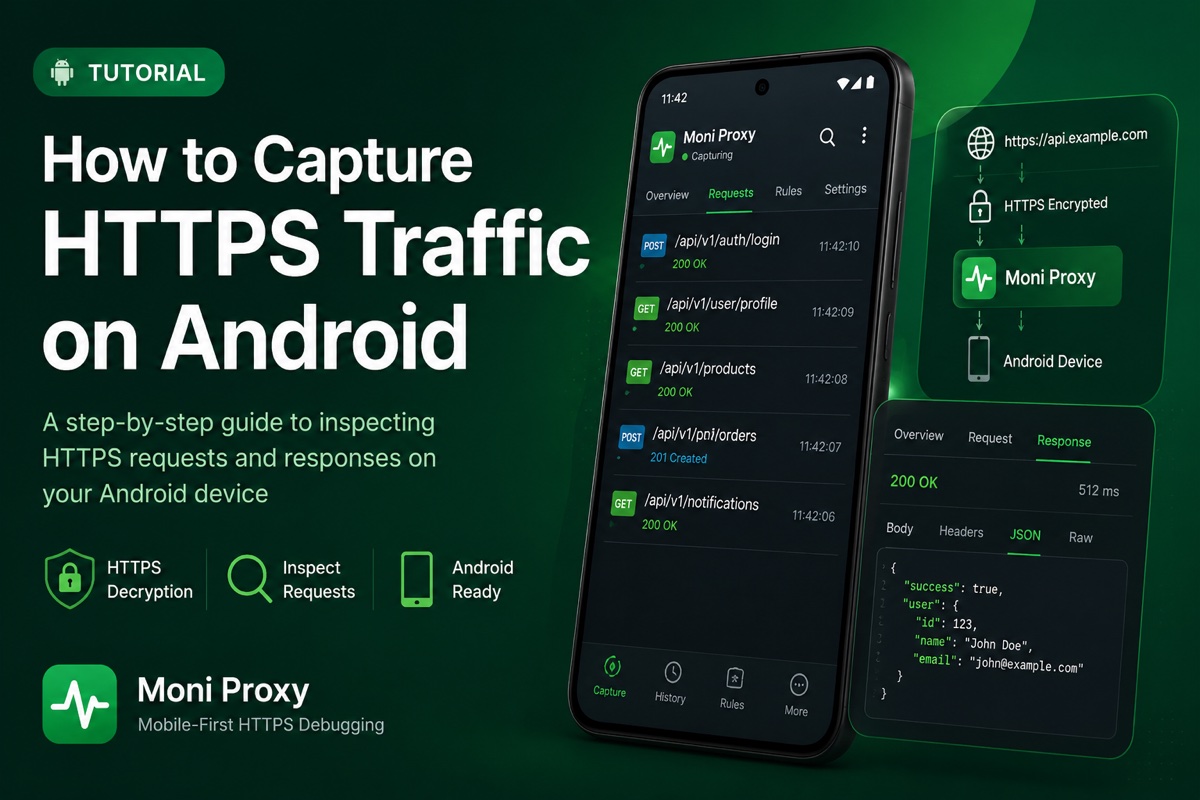
Debugging an Android app's network layer usually means answering one question: what exactly did the app send, and what did the server return? Because almost all Android traffic is encrypted with TLS, you cannot just read it off the wire — you need to capture and decrypt the HTTPS traffic your device is sending. This guide shows how to do that directly on the Android device itself, with no root and no desktop proxy to configure.
Why Inspect Android HTTPS Traffic?
Whether you use OkHttp, Retrofit, HttpURLConnection, Volley, or a WebView, every request eventually goes out as an HTTPS call. Seeing those calls in full is the fastest way to resolve a whole class of bugs:
- API debugging: confirm the URL, method, headers, and JSON body your client actually sent.
- Authentication issues: verify that tokens, cookies, and API keys are present and valid.
- Backend troubleshooting: read the decrypted response to decide whether a bug is client-side or server-side.
- QA testing: reproduce edge cases by mocking responses and rewriting payloads.
- SDK auditing: see which bundled third-party SDKs send data and how often.
Traditional Methods
The classic approach is a desktop proxy such as Charles or Proxyman: run it on your computer, set your Android device's Wi-Fi proxy to point at the machine, install and trust the proxy's CA certificate, and keep both on the same network. It works, but it is desktop-tethered and fiddly — and on modern Android, user-installed CAs are not trusted by apps targeting API 24+ unless the app explicitly opts in via a network security config.
The Mobile-First Approach
Moni Proxy runs the proxy on the Android device itself, using the system VPN API to route and capture traffic locally. Everything — capture, decryption, inspection — happens on-device, and the traffic never leaves your phone.
- No desktop required and no need to share a Wi-Fi network with a computer.
- No root — it uses the supported VPN service and a local certificate authority.
- Less setup: install, run the certificate wizard once, and start capturing.
- Inspect anywhere, including on mobile data and in the field.
Step-by-Step Tutorial
1. Install Moni Proxy
Install Moni Proxy on your Android device and open it. The first launch runs a one-time wizard that sets up a local certificate authority used to decrypt and display HTTPS content. The CA is generated on-device and never leaves it.
2. Start a Capture Session
Tap Start. Android shows a key/VPN indicator confirming the local VPN is active and traffic is being recorded. No Wi-Fi proxy host or port needs to be configured.
3. Generate Traffic
Switch to the app you want to debug and use it — log in, load a screen, submit a form. Each request is intercepted and added to the traffic list in real time, grouped by domain. This works for your own apps and for OkHttp, Retrofit, Volley, and WebView traffic alike.
4. Inspect Requests and Responses
Tap any entry to open its detail view. You will see the full URL, method, status code, headers, query parameters, and request body, plus the decrypted response with pretty-printed JSON. Most API bugs reveal themselves here — a missing header, a wrong content type, or an unexpected payload shape.
5. Debug APIs
Beyond reading traffic, you can mock a response, rewrite headers or body fields on the fly, or replay an edited request. This lets you reproduce error states, test how the UI handles a 500, or simulate empty data — without touching the backend.
What You Can and Cannot Capture
It helps to set expectations up front. On-device capture works for the vast majority of standard HTTPS traffic, but a few things are intentionally out of reach for security reasons.
You can capture: standard HTTPS requests from OkHttp, Retrofit, Volley, HttpURLConnection, WebView, and most third-party SDKs that use the platform networking stack. You will see full URLs, methods, status codes, headers, query parameters, request bodies, and decrypted response bodies, all grouped by domain.
You generally cannot capture: traffic from apps that use certificate pinning and do not trust the inspection CA, and some QUIC/HTTP3 flows that bypass the classic TLS-over-TCP path. These are deliberate protections, not limitations of the tool — and for apps you control, both are easy to work around in debug builds.
On-Device Capture vs a Desktop Proxy
If you have used Charles or Proxyman, the mental model is similar — intercept, decrypt, inspect — but the setup is very different. A desktop proxy needs three things to line up: the proxy running on a computer, the device's Wi-Fi proxy pointing at that computer, and a CA installed and trusted on the device. All three must stay in sync, and the device and computer must share a network. That is fine at a desk, but it breaks the moment you switch to mobile data or move to another room.
On-device capture collapses those steps. The proxy runs on the phone, so there is no Wi-Fi proxy host to set and no shared-network requirement. You install one app, trust the certificate once, and from then on capturing is a single tap. For QA teams testing on a fleet of real devices, that difference compounds quickly across a day of testing.
Common Issues and Fixes
- An app's traffic is missing. Apps targeting Android 7+ (API 24) ignore user-added CAs unless their network security config trusts them. For your own debug builds, add a
network_security_config.xmlthat trusts user certificates. Third-party apps that do not opt in cannot be decrypted — that is by design. - Bodies look unreadable. Make sure the certificate step completed and trust was granted during the wizard.
- Certificate pinning. Apps that pin certificates will reject the inspection CA. Disable pinning in debug builds for apps you control; pinned production traffic stays opaque.
- Nothing captured. Confirm the capture/VPN session is actually running from the app's home screen, and that the VPN indicator is visible in the status bar.
- Only some requests appear. A service may be preferring QUIC/HTTP3. Retry the action; many clients fall back to HTTPS over TCP, which captures cleanly.
Conclusion
Capturing HTTPS traffic directly on an Android device removes the desktop proxy, the Wi-Fi configuration, and the same-network requirement, leaving a fast loop of capture, inspect, and mock. Desktop proxies remain great for computer-based workflows, but for inspecting a real device — especially on mobile data or in the field — doing it on-device is hard to beat. Install the app, trust the certificate once, and you are ready to debug whatever your app sends over the wire.
Frequently Asked Questions
How do I capture HTTPS traffic on Android without root?
Use Moni Proxy. It runs an on-device proxy via Android's VPN API and a local certificate authority, so it can capture and decrypt HTTPS traffic with no root and no desktop proxy. Apps must trust user CAs (debug builds) or not use certificate pinning to be decryptable.
Can I inspect OkHttp and Retrofit requests?
Yes. OkHttp, Retrofit, Volley, HttpURLConnection and WebView all send standard HTTPS, so their requests appear in Moni Proxy's traffic list with full headers and decrypted bodies.