
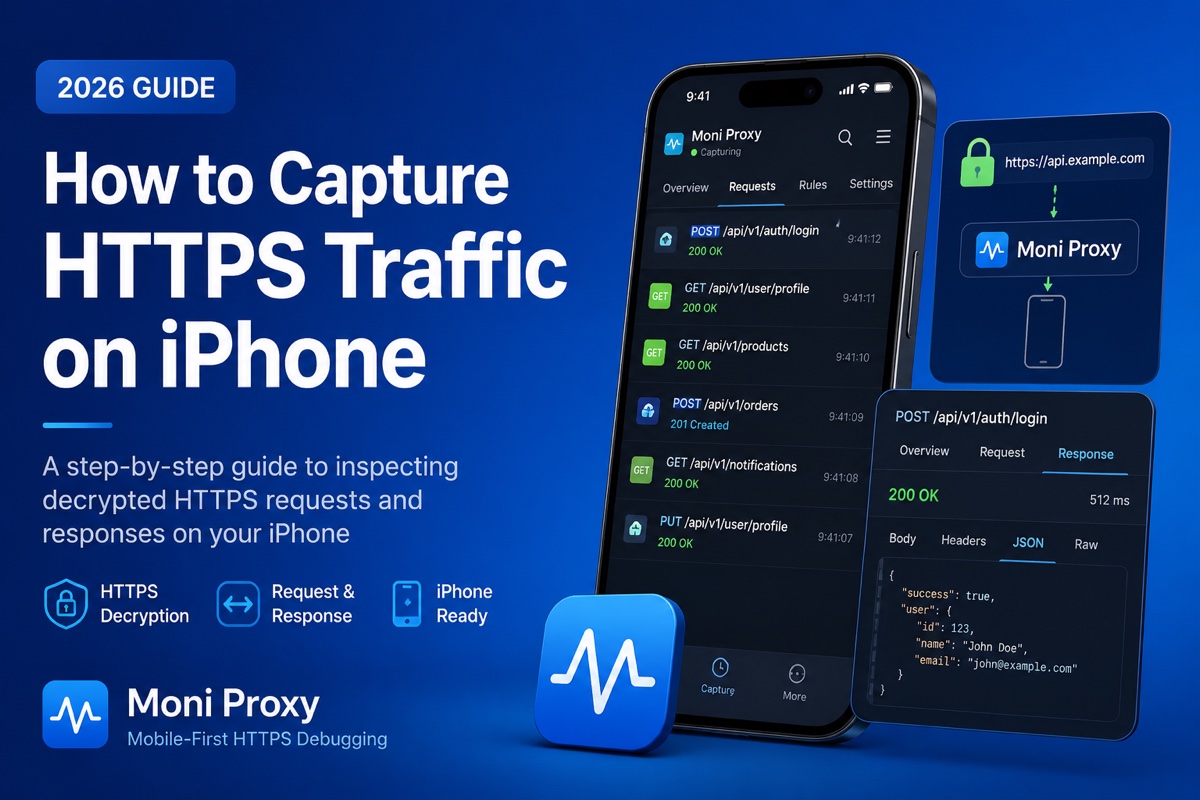
If you build or test mobile apps, you have almost certainly hit this wall: your app calls an API, something breaks, and you have no idea what actually went over the wire. The request might be malformed, the auth token might be missing, or the backend might be returning an error your UI quietly swallows. To debug it properly, you need to capture and inspect the HTTPS traffic your iPhone is sending and receiving.
Traditionally that meant tethering your phone to a computer, running a desktop proxy, and fiddling with certificates and Wi-Fi proxy settings. This guide shows a faster, mobile-first approach: capturing decrypted HTTPS traffic directly on the iPhone itself — no Mac, no jailbreak, and no desktop proxy to configure. We will cover why traffic inspection matters, how the traditional tools compare, and a step-by-step walkthrough using Moni Proxy.
Why HTTPS Traffic Inspection Matters
Nearly all modern app traffic is encrypted with TLS, which is great for security but inconvenient for debugging — you cannot just sniff packets and read them. Being able to decrypt and inspect that traffic on demand unlocks a whole class of problems you would otherwise be guessing at:
- API debugging. See the exact request URL, method, headers, query parameters, and body your app sent, plus the raw response the server returned. No more guessing whether the bug is in the client or the backend.
- Authentication issues. Verify that bearer tokens, cookies, and API keys are present, correctly formatted, and not expired. Auth bugs are some of the hardest to diagnose blind.
- Backend troubleshooting. Confirm whether a failing feature is caused by a 4xx/5xx response, an unexpected payload shape, or a timeout — before you escalate to the backend team.
- QA testing. Reproduce edge cases by mocking responses or rewriting payloads, so you can test how the app behaves on errors, empty states, and slow networks.
- Network analysis. Audit which third-party SDKs are phoning home, how often, and with what data — useful for performance, privacy, and security reviews.
Traditional Methods
For years, two desktop tools have defined this space. Both are excellent at what they do, and both run on your computer rather than your phone.
Charles Proxy
Charles is a long-standing, cross-platform HTTP proxy that has been a staple of mobile QA for over a decade. It is mature, scriptable, and well documented. The trade-off is setup: you run Charles on a desktop, point your iPhone's Wi-Fi proxy at your computer, install and trust the Charles root certificate on the device, and keep both on the same network. It works well once configured, but the workflow is desktop-centric.
Proxyman
Proxyman is a more modern, native macOS proxy with a polished UI, strong filtering, and good developer ergonomics. It significantly improves on the classic desktop proxy experience. Like Charles, though, it is fundamentally a desktop application — your phone routes its traffic through your Mac, which means certificate installation, Wi-Fi proxy configuration, and a computer that has to be running.
None of this is a knock on these tools — they are powerful and many teams rely on them daily. The point is simply that they assume a desktop-tethered workflow. If you are away from your machine, debugging on a real device in the field, or just want to skip the proxy setup dance, that assumption gets in the way.
The Mobile-First Approach
Moni Proxy takes a different angle: it runs the proxy on the iPhone itself. Instead of routing traffic to a computer, it uses iOS's native VPN and certificate APIs to capture, decrypt, and render your device's HTTPS traffic locally. Everything — capture, decryption, inspection — happens on-device, and the traffic never leaves your phone.
In practice that means the workflow benefits stack up quickly:
- No desktop required. You do not need a Mac running a proxy, and you do not need your phone and computer on the same network.
- No jailbreak. It uses supported system VPN profiles and a local certificate authority, so there is nothing to root or bypass.
- Less setup. Install the app, run the certificate wizard once, and start capturing. There is no Wi-Fi proxy host/port to configure.
- Inspect anywhere. Debug on a real device on cellular, on the train, or in the field — wherever the bug actually reproduces.
The rest of this guide walks through the exact steps.
Step-by-Step Tutorial
1. Install Moni Proxy
Download Moni Proxy from the App Store and open it. On first launch, the app walks you through a one-time setup wizard that installs a local certificate authority (CA) on your device. This CA is what allows the app to decrypt and display HTTPS content; it is generated locally and never shared.
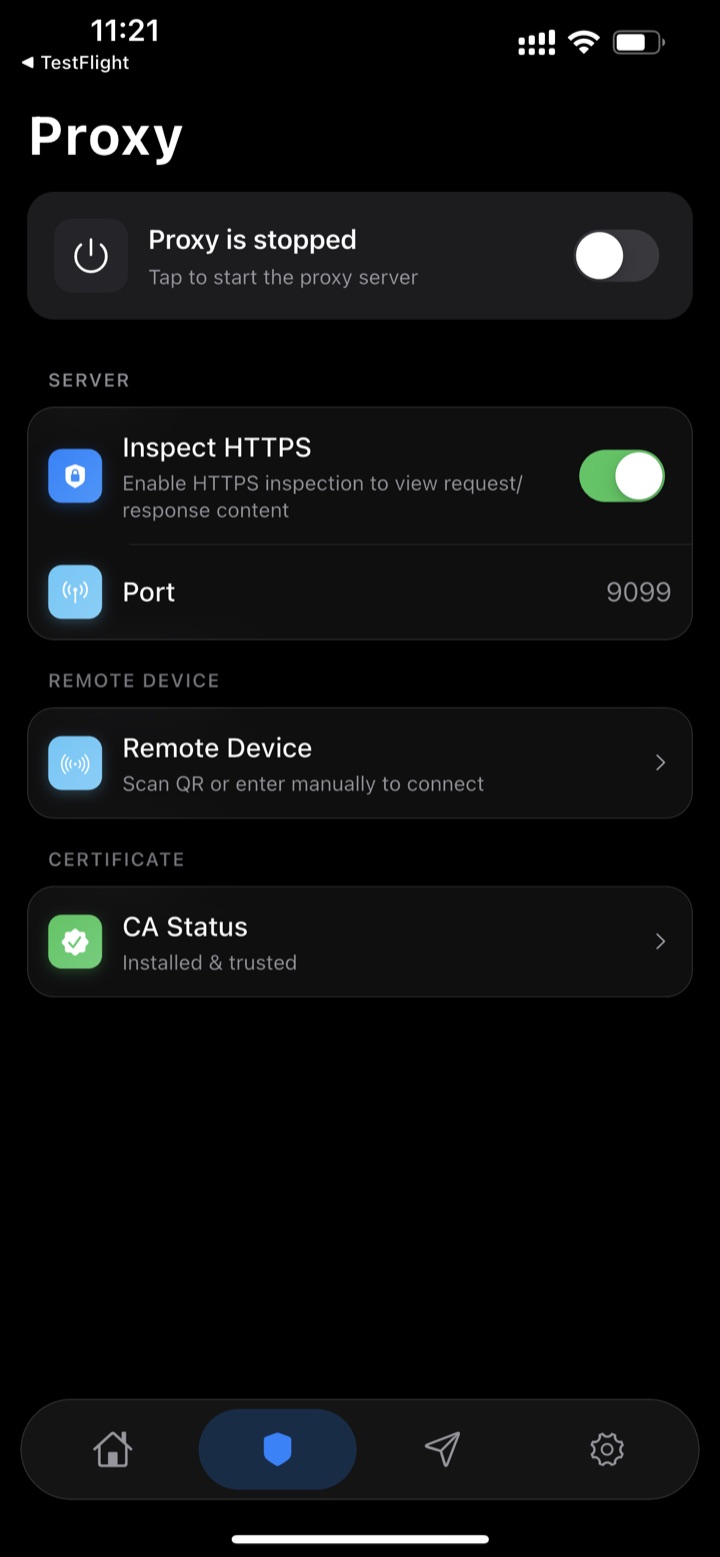
Follow the prompts to install the profile in Settings → General → VPN & Device Management and then enable full trust for the certificate in Settings → General → About → Certificate Trust Settings. You only do this once.
2. Start a Capture Session
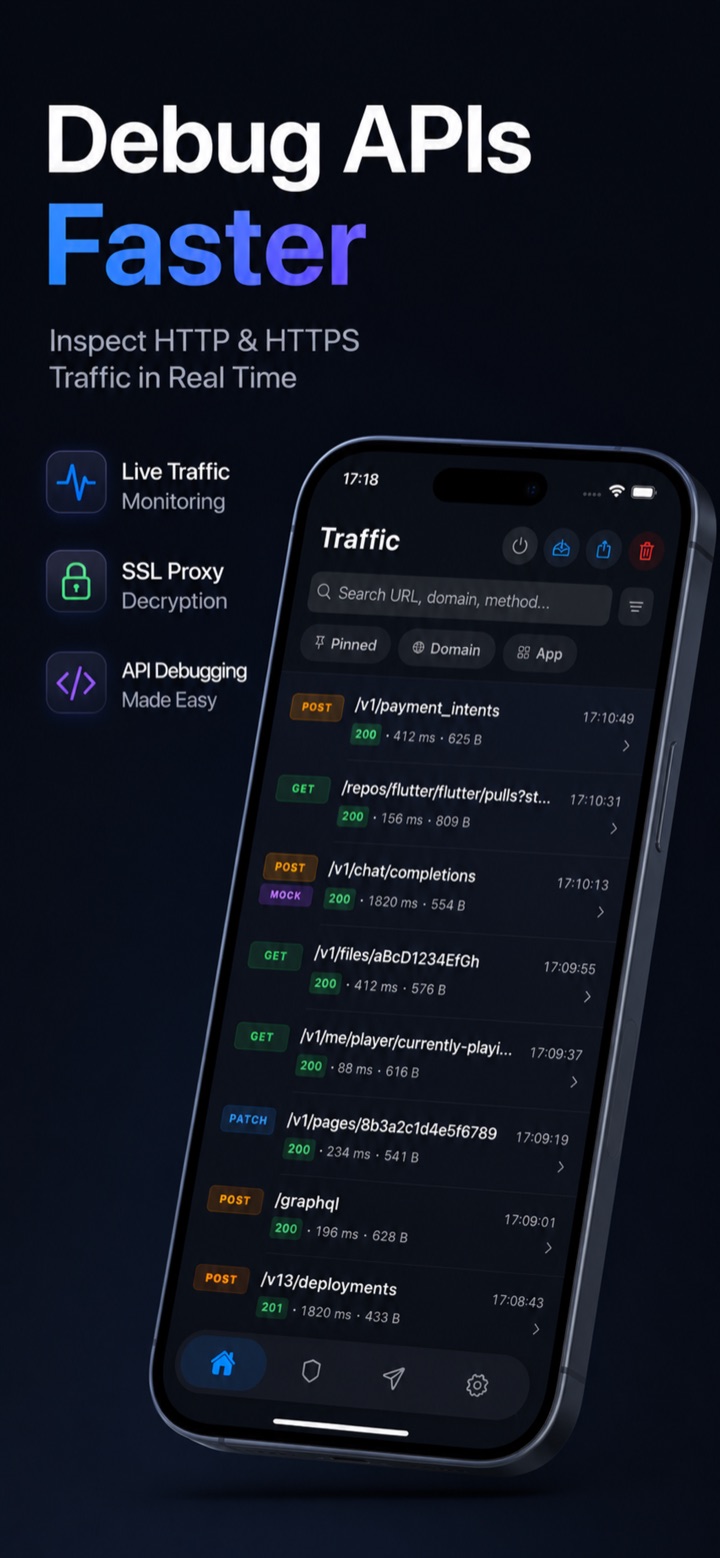
Back in the app, tap Start to begin capturing. Moni Proxy spins up a local proxy and routes your device traffic through it using a system VPN profile. When capture is active, you will see a status indicator confirming that traffic is being recorded.
3. Generate Traffic
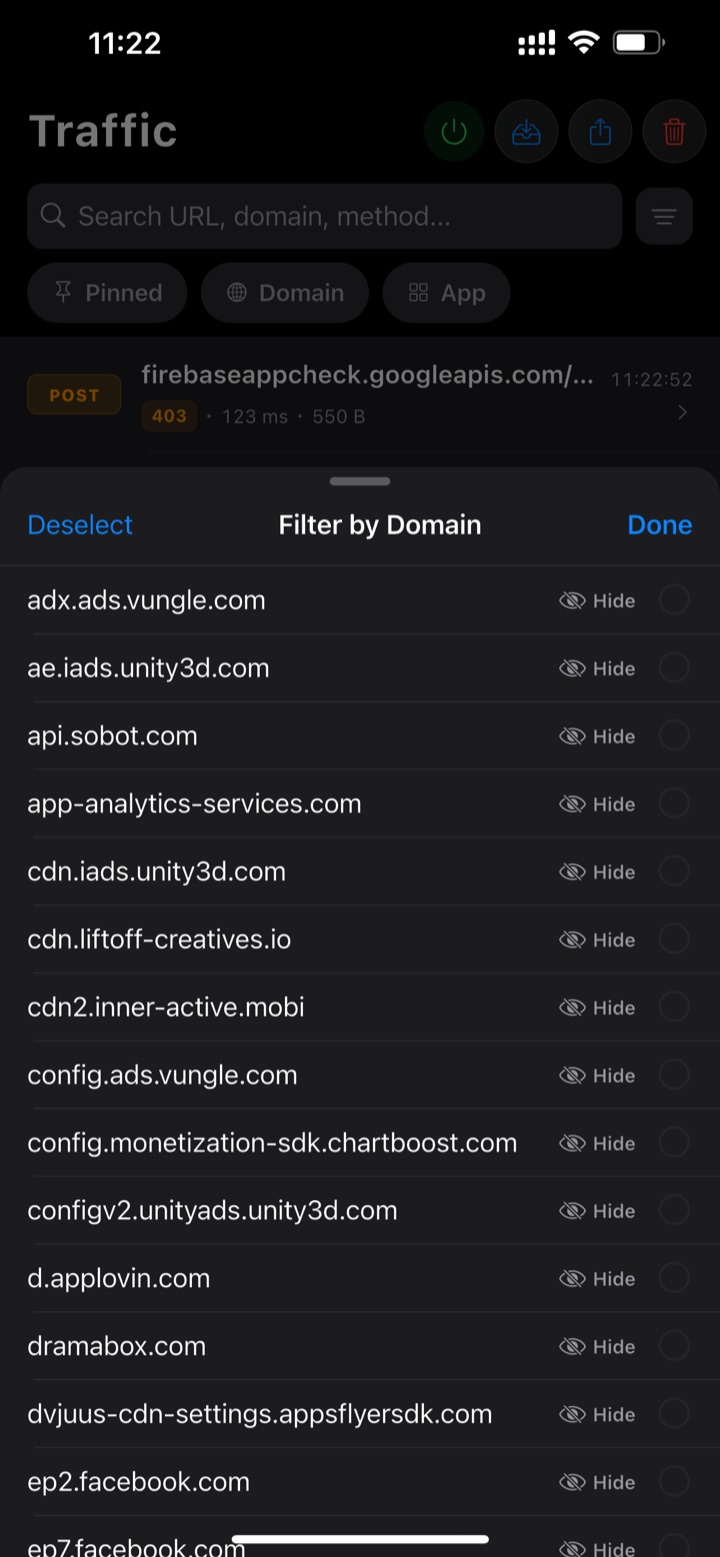
With capture running, switch to the app you want to debug and use it normally — log in, open a screen, pull to refresh, submit a form. Each network call your target app makes is intercepted and added to the Moni Proxy traffic list in real time. This works for your own apps as well as third-party apps, and for any networking stack (URLSession, Alamofire, a Flutter HTTP client, or a React Native fetch).
4. Inspect Requests
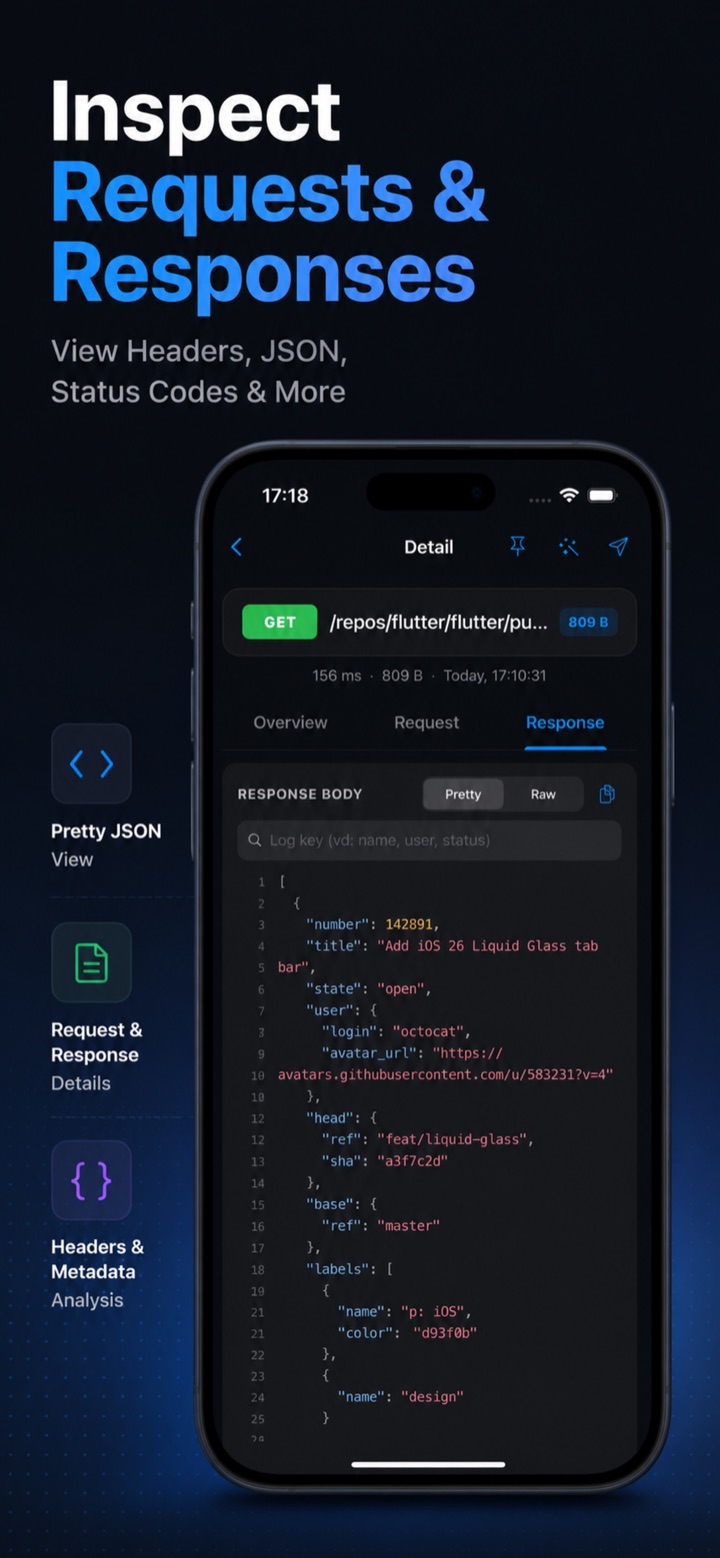
Tap any entry to open its detail view. For the request you can see the full URL, HTTP method, status code, all headers, query parameters, and the request body — formatted and syntax-highlighted for JSON. This is where most API bugs reveal themselves: a missing Authorization header, a wrong content type, or a malformed payload.
5. Inspect Responses
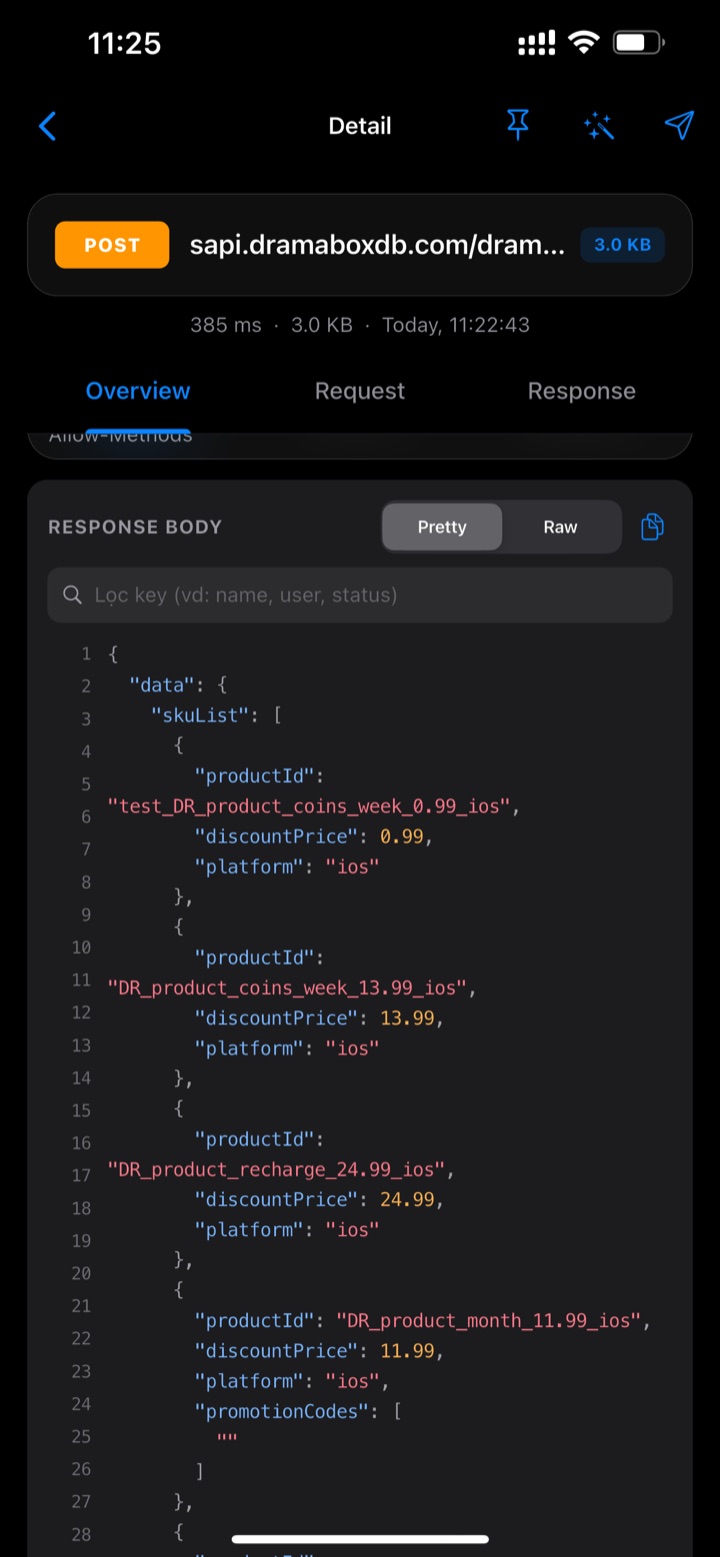
Switch to the response tab to see the status line, response headers, timing, and the decrypted response body. Pretty-printed JSON makes it easy to confirm whether the server returned what you expected — or whether the bug is on the backend. You can search within bodies and copy values out for sharing in a bug report.
6. Debug APIs
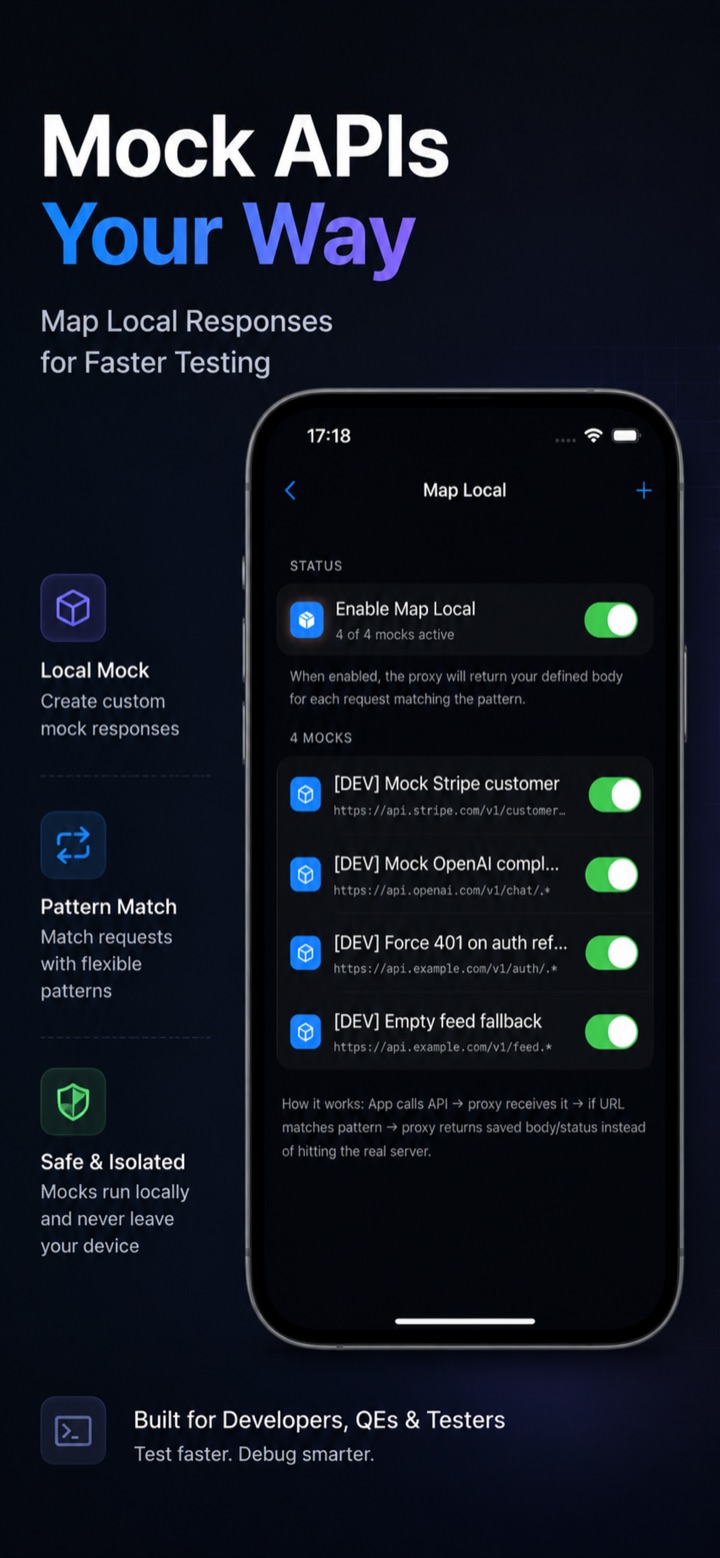
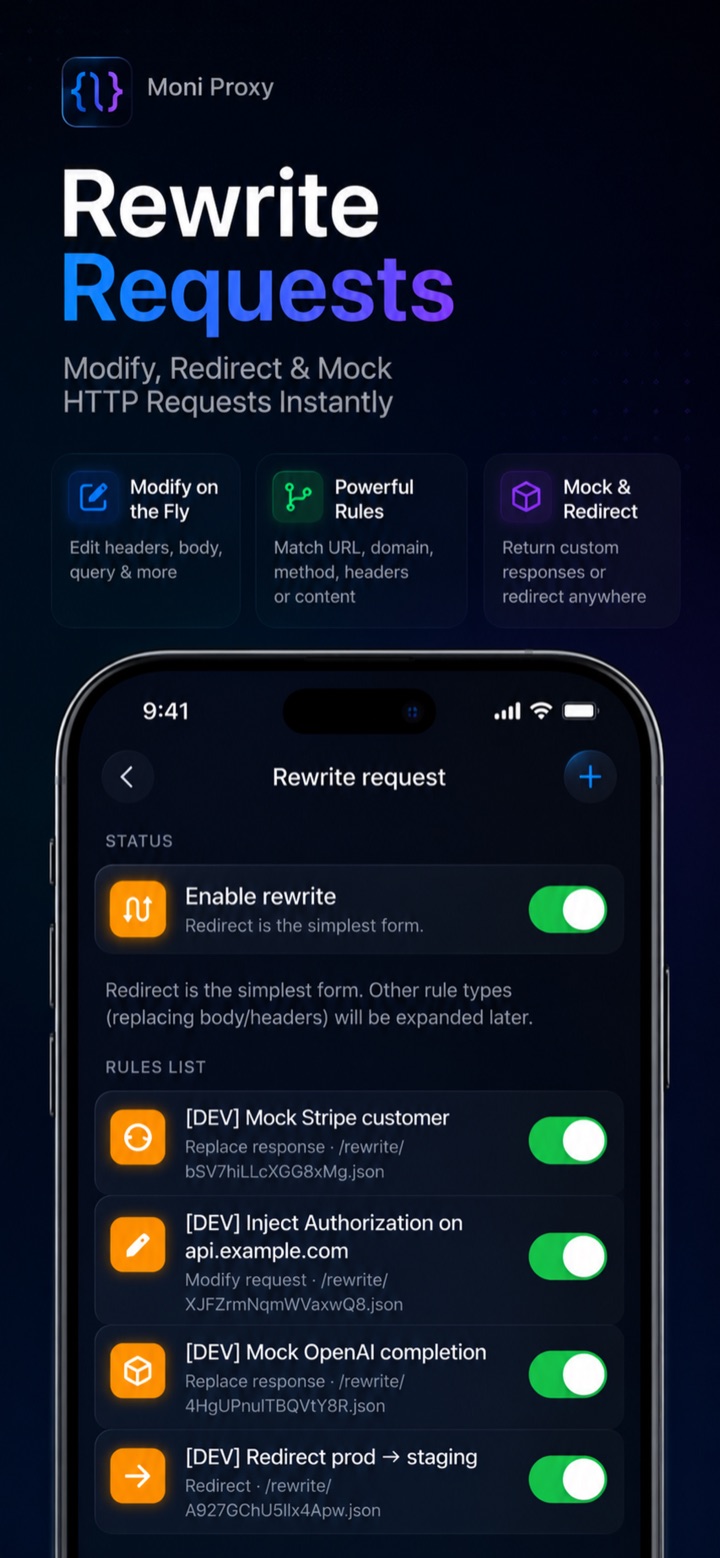
Beyond read-only inspection, you can actively debug. Set up a rule to mock a response so the app sees a custom payload, rewrite headers or body fields on the fly, or replay a captured request after editing it. This turns the device into a self-contained debugging lab: reproduce an error state, test how the UI handles a 500, or simulate an empty list — all without touching the backend.
Common Issues and How to Fix Them
A few things trip people up the first time they capture HTTPS traffic on iPhone. Here is how to resolve the most common ones quickly.
- Requests show up but bodies are unreadable. This almost always means the certificate is installed but not trusted. Go to Settings → General → About → Certificate Trust Settings and toggle full trust on for the Moni Proxy root certificate. Without that step, iOS will route the traffic but refuse to let it be decrypted.
- A specific app's traffic is missing. Some apps use certificate pinning, which intentionally rejects any certificate other than the one the developer baked in. This is a security feature, not a bug. You can still inspect traffic from apps you control by disabling pinning in debug builds; for third-party apps, pinned connections will not be decryptable, and that is expected.
- Nothing is captured at all. Confirm the capture session is actually running and that the VPN profile is enabled — iOS shows a small VPN indicator in the status bar when it is active. If you recently toggled it off, restart the capture from the app's home screen.
- HTTP/3 or QUIC traffic looks incomplete. Some services prefer QUIC, which behaves differently from classic TLS-over-TCP. If a request is missing, retry it; many clients fall back to HTTPS over TCP, which captures cleanly.
Once trust is set up correctly, capturing becomes reliable and you rarely need to revisit these settings.
Conclusion
If you frequently debug mobile APIs and inspect HTTPS traffic, a mobile-first workflow can significantly reduce setup time and improve productivity. Capturing traffic directly on the iPhone removes the desktop proxy, the Wi-Fi configuration, and the same-network requirement — leaving you with a fast loop of capture, inspect, and mock that works wherever your bug actually happens.
Desktop proxies like Charles and Proxyman remain great choices for desktop-centric teams and large captures on a big screen. But for inspecting a real device, in the field, or simply skipping the setup overhead, doing it on-device is hard to beat.